Explain systems and solve computing problems. The 30 quick questions support recall and application; practise full algorithms, programs and evaluations using the PLC tasks.
Revise the key ideas
Primary storage
Need for main memory — The CPU needs rapid access to instructions and working data. Main memory provides this access while a program runs. Loading an application from a drive into RAM is different from permanently saving its files to secondary storage.
RAM — Random access memory stores running programs and data currently in use. Its contents are lost when power is removed, so unsaved work may disappear. RAM can be read and changed; increasing it can let more or larger programs run without heavy use of virtual memory.
ROM — Read-only memory retains its contents without power and traditionally stores startup instructions or firmware. These help initialise the machine and begin loading the operating system. ROM is not the normal workspace for editing documents; modern firmware can sometimes be updated using special procedures.
Comparing RAM and ROM — Both are primary storage, but RAM is volatile working memory while ROM retains firmware. A computer needs startup instructions before loading ordinary applications. Explain what each holds and why its characteristics fit that task; do not say ROM stores all personal files.
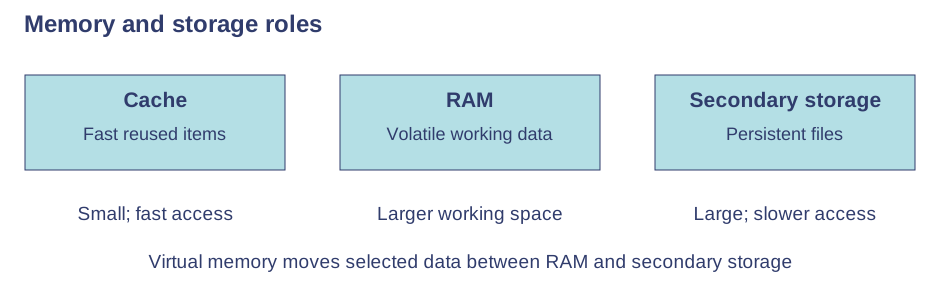
Cache and memory hierarchy — CPU cache provides faster access than RAM but is generally smaller and more expensive per unit of capacity. RAM is larger working storage; drives provide still larger persistent storage. This hierarchy balances speed, capacity and cost rather than replacing all memory with cache.Use the labels alongside the associated explanation.
Virtual memory — When RAM is insufficient, the operating system transfers some data from RAM to a reserved area of secondary storage, freeing RAM for other work. Needed data must be transferred back. This allows more work to proceed but is slower than using RAM directly, especially with a hard disk.
Virtual-memory trade-off — If applications repeatedly need data moved out of RAM, transfers consume time and the machine may feel unresponsive. Adding suitable RAM can reduce this pressure. Virtual memory does not physically increase installed RAM or make a drive as fast as RAM.
Secondary storage
Persistent storage — Secondary storage holds programs and user data for later use. An SSD, hard disk or optical disc retains files without continuous power. Distinguish the storage medium that holds data from the device used to read or write it.
Magnetic storage — Hard disks store data magnetically on rotating platters. They commonly offer high capacity at relatively low cost per gigabyte. Mechanical movement introduces access delay and vulnerability to knocks while operating; a magnetic tape is another magnetic medium, suited to sequential access.
Optical storage — CDs, DVDs and Blu-ray discs use optical patterns read by a laser. They can distribute media and be portable, but require a compatible drive and can be scratched. Their capacity and access speed often make them unsuitable as the main working drive for a modern large application.
Solid-state storage — SSDs, memory cards and USB flash drives store data electronically. They often provide fast access and withstand movement better than mechanical disks, but cost per capacity and write endurance vary. No moving parts does not mean indestructible or immune to data loss.
Capacity and speed — Capacity is how much data fits; speed concerns reading and writing it. A large video archive prioritises capacity and cost, while an operating-system drive benefits from low access delay. State the workload rather than assuming the highest capacity is always the best choice.
Portability and durability — Portability concerns carrying and connecting the device. Durability concerns resisting physical damage. A small USB drive is portable but easily lost; an SSD tolerates knocks better than a spinning hard disk. Protect sensitive portable data as well as the hardware.
Reliability and cost — Reliability concerns dependable operation and retaining data; every storage type can fail. Compare purchase price and cost per unit of capacity. Keeping another copy protects against loss; buying one expensive device does not eliminate the need for backups.
Choosing in context — For a photographer travelling with a laptop, fast portable storage resistant to movement may favour an SSD. For an inexpensive large stationary archive, a hard disk may be suitable. A reasoned recommendation connects capacity, speed, portability, durability, reliability and cost to actual needs.
Test yourself
30 questions · Random sets of 10. These quick checks support revision; practise longer explanations and justified judgements too.
Mind map
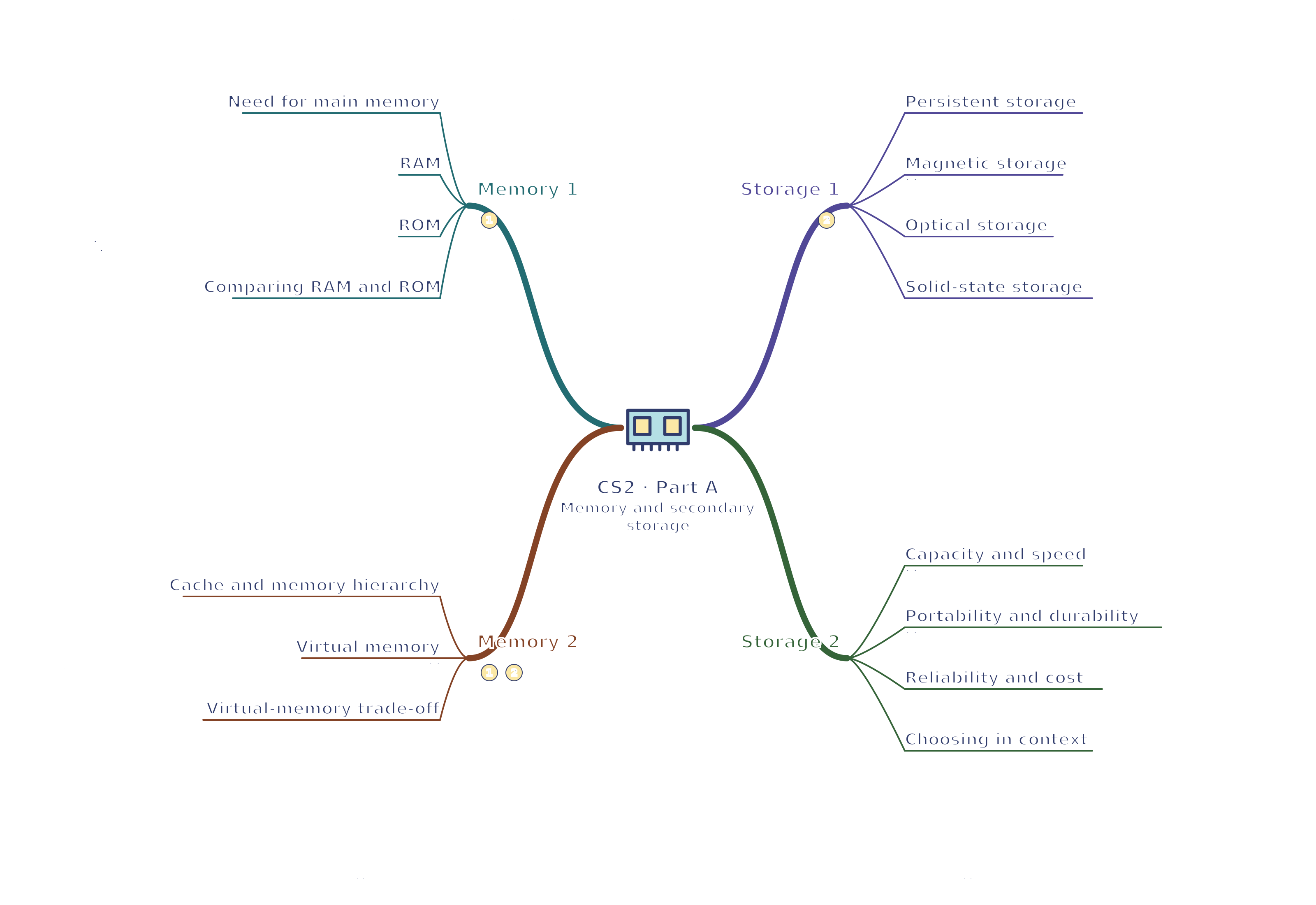
Use the branches to recall the ideas and explain their connections. Check the revision notes for the full detail.
CS2 · Memory 1 / Memory 2 / Storage 1 / Storage 2
View CS2 · Memory 1 / Memory 2 / Storage 1 / Storage 2 mind mapOpen the full-size map to zoom. Download the PDF to print on A4 or enlarge to A3.
 Mr Kidman's Classroom